

Google now shows an AI Overview above its results for a large share of searches, and its AI Mode button sits in the search bar and in Chrome. Some people find the summaries useful. Many would rather go straight to the links, check sources themselves, or avoid answers that can get facts wrong. If that is you, the good news is that you can stop seeing AI Overviews in a few minutes, on desktop and on your phone. This guide explains five ways to turn off AI Overview on Google, how to remove AI Mode and other Google AI features, and, for business owners, the new option that lets websites opt out of Google's AI answers, plus whether your business should use it.
Can you turn off AI Overviews on Google?
No, Google does not offer an official switch to turn off AI Overviews. Google treats them as a core part of Search, like featured snippets. You can still stop seeing them by using the Web filter, adding "-ai" to a search, using the udm=14 web address, setting a custom search engine or installing a browser extension.
Each method works differently. Some hide the AI Overview after the page loads. Others ask Google for a results page that never includes it. Because none of them is a true off switch, Google could change how they work at any time, so it helps to know more than one.
How to turn off AI Overview on Google: 5 methods
1. Use the Web filter
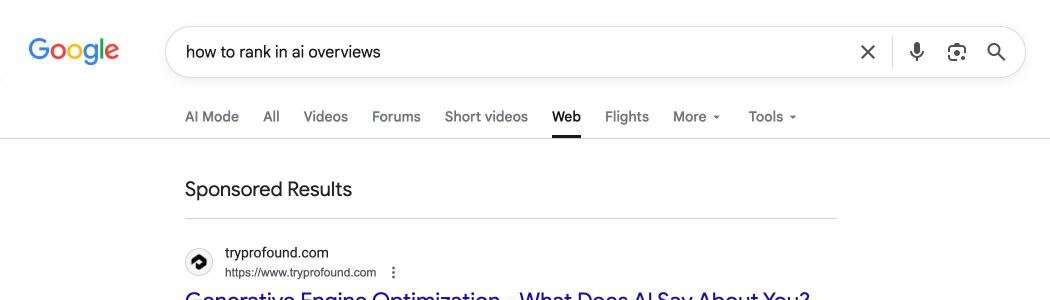
The Web filter is Google's own way to show only text links, without AI Overviews. It works on desktop, mobile and in the Google app, but you need to select it for each search.
- Search for anything on Google.
- Under the search box, select "Web". If you can't see it, select "More" first.
- The page reloads with links only.
The Web filter also removes other features, such as image results and knowledge panels.
2. Add "-ai" to your search
Adding "-ai" to the end of a search, such as "best walking boots -ai", is widely reported to hide the AI Overview. It is the quickest trick, with nothing to set up.
- Type your search as usual.
- Add a space, then "-ai", at the end.
- Press Enter.
This is a loophole, not a feature, so Google could stop it at any time. The minus sign also tells Google to leave out results containing "ai", which can affect searches where that word matters.
3. Add udm=14 to the search address
The Web filter adds a short code, udm=14, to Google's web address. You can add it yourself to go straight to the links-only page.
- Search on Google, then click the address bar.
- Add "&udm=14" to the end of the address and press Enter.
- To make it reusable, bookmark https://www.google.com/search?udm=14&q= and type your search after "q=".
Google does not document udm=14 publicly, so treat it as useful but not guaranteed.
4. Make "Google Web" your default search engine
This is the most reliable permanent fix on desktop. You add a version of Google that always uses udm=14, then make it your default, so every search from your address bar opens without AI Overviews.
Google Chrome and Microsoft Edge (desktop):
- Chrome: go to Settings, then Search engine, then Manage search engines and site search. Edge: go to Settings, then Privacy, search and services, then Address bar and search, then Manage search engines.
- Next to "Site search", select "Add".
- Enter the name "Google Web", the shortcut "@web", and the URL https://www.google.com/search?q=%s&udm=14
- Select "Add", then open the three-dot menu next to "Google Web" and choose "Make default".
Firefox (desktop):
- Go to Settings, then Search, then Search Shortcuts, and select "Add".
- Enter the name "Google Web" and the same URL, then save.
- Under "Default Search Engine", choose "Google Web".
Safari: Safari does not let you add custom search engines. Use the bookmark from method 3, or install a Safari extension that redirects Google searches to the Web view.
5. Use a browser extension
Extensions such as "Bye Bye, Google AI" or "Hide Google AI Overviews" hide the AI Overview box, and often AI Mode buttons, after the page loads.
- Search your browser's extension store for an AI Overview blocker.
- Check its reviews, last update date and the permissions it asks for.
- Install it and test a search.
Extensions can break when Google changes its page design, and any extension that reads your search pages can see your searches, so choose one from a developer you trust.
How to turn off AI Overview on mobile
Phones offer fewer settings, but you can still avoid AI Overviews.
iPhone and iPad
- Use the Web filter after each search, in Safari, Chrome or the Google app.
- Save the udm=14 bookmark from method 3, and add it to your home screen through Safari's Share menu for one-tap access.
- Install a Safari extension that redirects Google to the Web view, through Settings, then Safari, then Extensions.
Android
- Use the Web filter after each search.
- Chrome on Android does not let you type a custom search engine address, so save the udm=14 bookmark to your home screen instead.
- Firefox for Android supports custom search engines: go to Settings, then Search, then Default search engine, then "Add search engine", and use the Google Web URL from method 4.
The Google app itself has no setting to remove AI Overviews.
How to turn off AI Mode on Google
AI Mode is Google's conversational search, reached through a button in Chrome's address bar, on the New Tab page and in Google Search. You can hide most of these entry points.
Remove AI Mode from Chrome's address bar
- Right-click Chrome's address bar.
- Untick "Always show AI Mode".
Remove AI Mode from the New Tab search box and right-click menu
Some AI Mode buttons are controlled by Chrome's experimental settings, called flags. Flags can change or disappear between Chrome updates.
- Type chrome://flags in the address bar and press Enter.
- Search for "AI Mode" and set the related flags, such as "AI Mode Omnibox entrypoint", to "Disabled".
- Search for "Search with AI Mode" to remove the right-click option, and set it to "Disabled".
- Select "Relaunch".
Turn off AI Mode in Search Labs
If you joined Google's Search Labs experiments, open Search Labs from the Labs icon on Google, go to Manage, and turn off AI Mode.
Remove AI Mode from your Android search bar
On Pixel phones, tap the "G" in the home-screen search bar, tap your profile picture, go to Settings, then Customize Pixel Search Box, and turn off AI Mode. Other Android phones may show a similar setting in the Google search widget's settings.
The AI Mode tab on Google's results page itself cannot be removed, but the Web filter and udm=14 methods keep you on links-only results.
How to turn off other Google AI features
Google's AI appears in several places, and each has its own setting.
- Gemini in Chrome: open chrome://settings, search for "Gemini" and turn off "Gemini in Chrome". Right-click the Gemini button at the top of Chrome and select "Unpin" to hide it.
- AI writing help in Chrome: in Chrome's settings, search for "Help me write" and turn it off.
- Gemini in Gmail and Google Docs: these are managed in each app's settings, or by your organisation's admin on work accounts.
There is no single switch that turns off all Google AI at once.
Why does the AI Overview keep disappearing, and how do you turn it back on?
Google only shows an AI Overview when its systems judge that one will help, and each answer is generated fresh, so the same search can show one and then not. Your location, search history and the type of question also play a part. If you have used any method above, it will also hide them.
There is no switch to turn AI Overviews on. To see them again, remove "-ai" from your searches, switch back from the Web filter, set Google as your default search engine instead of Google Web, or disable your extension.
Can website owners stop Google using their content in AI Overviews?
Yes, increasingly. On 3 June 2026, the UK's Competition and Markets Authority (CMA) required Google to let website owners opt out of having their content used in its AI search features. In response, Google began testing a new toggle in Search Console that lets site owners choose whether their content appears in, and helps ground, AI Overviews, AI Mode and AI Overviews in Discover.
- Opting out keeps your pages in normal search results and rankings.
- Sites that opt out lose impressions and traffic from Google's AI features.
- The toggle is rolling out to a subset of UK site owners first, with a global rollout planned.
- Google is also adding reports in Search Console showing how your site appears in its AI features.
Before this, the only option was blocking Google-Extended in robots.txt. That stops your content being used to train Google's AI models, but it does not remove you from AI Overviews or AI Mode, because those draw on the normal search index.

Should your business opt out of AI Overviews?
For most businesses, no. AI Overviews and AI Mode are where many buyers now research and build shortlists, and visitors who arrive from AI answers tend to convert well. Research by Orbit Media across 97 B2B websites found ChatGPT visitors converted to leads at 2.1%, compared with 0.5% for Google search. If you opt out, the AI answer still appears, but it names and links to your competitors instead. To appear in those answers instead, read how to rank in Google AI Overviews and AI Mode and our guide to answer engine optimisation.
Opting out can make sense for publishers whose content is the product itself, such as paywalled research, licensed data or news, where AI summaries replace a paid visit. For everyone else, the better move is to make sure Google's AI describes your business accurately and cites your pages. Our guide on how to rank your business in AI Overviews and AI Mode shows how.
FAQ
Does turning off AI Overviews change my search results?
No. The links underneath are the same. The Web filter and udm=14 simply show a links-only page, which also leaves out features such as image results and knowledge panels.
Does "-ai" still work?
Many people report that it does at the time of writing, but it is an unofficial trick that Google could stop at any time. The Web filter and the Google Web search engine are more reliable.
Is there a Google setting to turn off AI forever?
No. Google has no account setting that turns off AI Overviews or all of its AI features. The custom "Google Web" search engine is the closest permanent option on desktop.
Does udm=14 remove other features too?
Yes. It shows web links only, so it also removes image packs, knowledge panels, People Also Ask and other results-page features.
Can I turn off AI Overviews in the Google app?
Not with a setting. Use the Web filter after each search, or search in a browser with the Google Web shortcut instead. Running a business and wondering how Google's AI describes you? Book a call with Team MAAI.