

For twenty years, getting found online meant ranking in a list of ten blue links and waiting for the clicks. That has changed. Your buyers now ask ChatGPT, Claude and Perplexity for answers, and Google shows an AI Overview above its results for millions of searches. Many of those people get what they need without visiting any website. Others arrive having already read about you in an AI answer. This guide explains how search traffic has shifted, why your impressions may be rising while your clicks fall, and how to track AI traffic on your website for free with Google Analytics 4 (GA4) and Google Search Console.
How has search traffic shifted to AI?
Search used to be a two-step process: type a question, then click a result to find the answer. AI has merged those steps. People now ask AI assistants full questions, read AI Overviews at the top of Google, or have a whole conversation in Google's AI Mode, and the answer arrives without a click.
The effect on clicks is now well measured:
- Research by Pew Research Center found Google users clicked a traditional result in 8% of visits when an AI summary appeared, compared with 15% when it did not.
- Ahrefs measured a 34.5% drop in click-through rate for the top-ranking page when an AI Overview was present.
- Seer Interactive reported drops as high as 61%.
For your business, this has two sides. Simple questions, such as "what is a 3PL?", now send far fewer visitors, because the answer sits on Google. But people who do click through from an AI answer or an AI assistant tend to arrive further along: they have already compared options and often know your name. Fewer visits, but better-informed ones, is the pattern most businesses now see.
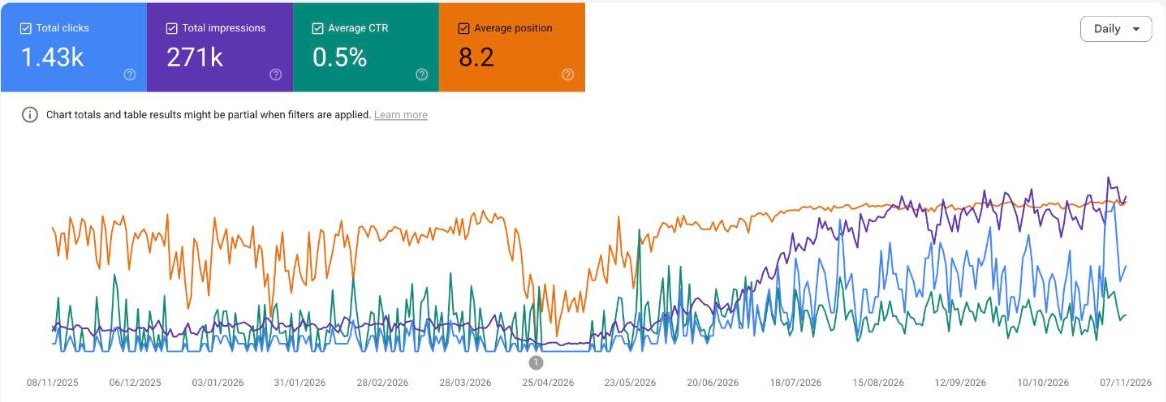
Yes it's dropping organic.
Why are impressions rising while clicks fall?
Four terms explain what you see in Search Console:
- Impressions: how many times your page appeared in Google's results.
- Clicks: how many times someone clicked through to your page.
- CTR (click-through rate): clicks divided by impressions.
- Average position: where your page ranked, on average.
When an AI Overview appears, your page can still rank in the same position and still be seen, so impressions hold steady or rise. But the AI answer above it satisfies many searchers, so fewer of them click, and CTR falls. SEOs call this gap between impressions and clicks "the great decoupling".
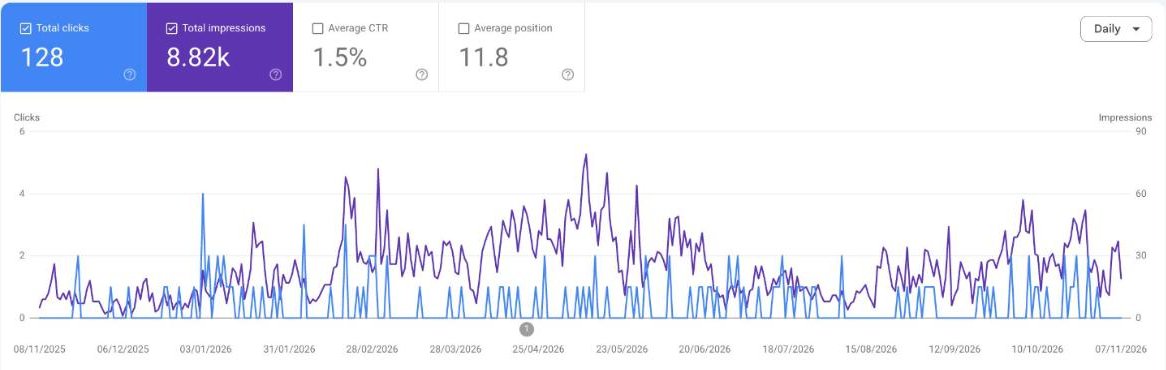
Seeing this pattern does not mean your SEO has failed. If impressions and position hold while CTR falls, the results page has changed around you. The useful question becomes which pages are affected, and whether the searches behind them still matter to your business. This guide shows you how to answer that with free tools.
What counts as AI traffic?
AI traffic comes in three forms, and each shows up differently in your data.
- Visits from AI assistants: people who click a link in ChatGPT, Claude, Perplexity, Gemini or Copilot. These usually appear in GA4 as referrals from chatgpt.com, claude.ai, perplexity.ai, gemini.google.com or copilot.microsoft.com.
- Clicks from Google AI Overviews and AI Mode: people who click a source inside Google's AI answers. These appear as normal Google organic traffic.
- Invisible AI influence: people who read an AI answer, then later search your brand name or type your web address. These appear as branded search or direct visits, with no link back to the AI tool.
Why is AI traffic hard to track?
Three things make AI traffic harder to see than other channels.
- Missing referrers: visits from AI mobile apps, or from links people copy and paste, often arrive with no referrer and land in your Direct traffic.
- Blended Google data: Google includes AI Overview and AI Mode clicks and impressions in its normal search data, with no separate filter.
- No click, no record: when an AI answer names your business but nobody clicks, analytics records nothing.
No free tool solves all three, but two free Google tools cover most of it. GA4 shows who visits from AI assistants, which pages they land on and whether they enquire. Search Console shows which searches you appear for, and where impressions and clicks are moving apart. Set up both properly and you have a reliable picture.
Free tools for tracking AI traffic on your website
How to set up Google Analytics 4, step by step
GA4 is Google's free analytics tool. If you already have it, check each step below anyway, as several settings that matter for AI tracking are off by default.
Step 1: Create your account and property
The account holds your business, and the property holds the data for your website.
- Go to analytics.google.com and sign in with your business Google account.
- Select "Start measuring" and enter an account name, usually your business name.
- Choose your data-sharing settings and continue.
- Enter a property name, such as "Company website".
- Set the reporting time zone and currency to match your business, so daily figures and revenue line up with your own records.
- Enter your industry and business size, choose the objectives that fit (for most service businesses, "Generate leads"), and accept the terms.
Step 2: Create a web data stream
A data stream connects your website to the property.

- Choose "Web" as the platform.
- Enter your website address and a stream name.
- Leave Enhanced Measurement switched on. It tracks page views, scrolls, outbound clicks, site search, form interactions, video engagement and file downloads without extra code.
- Select "Create stream" and copy your Measurement ID, which starts with "G-".
Step 3: Install the Google tag on your website
The Google tag is a short piece of code that sends visit data to GA4. Choose the method that suits your website.
- Manually: copy the tag from "View tag instructions" and paste it straight after the opening <head> tag on every page.
- Google Tag Manager: create a Google tag in Tag Manager, add your Measurement ID, set it to fire on all pages and publish.
- WordPress: install Google's Site Kit plugin and connect Analytics.
- Shopify: install the Google and YouTube app and connect your GA4 property.
- Wix and Squarespace: add your Measurement ID in the site's marketing or external services settings.
Use only one method, as installing the tag twice counts every visit twice.
Step 4: Check the tag is working
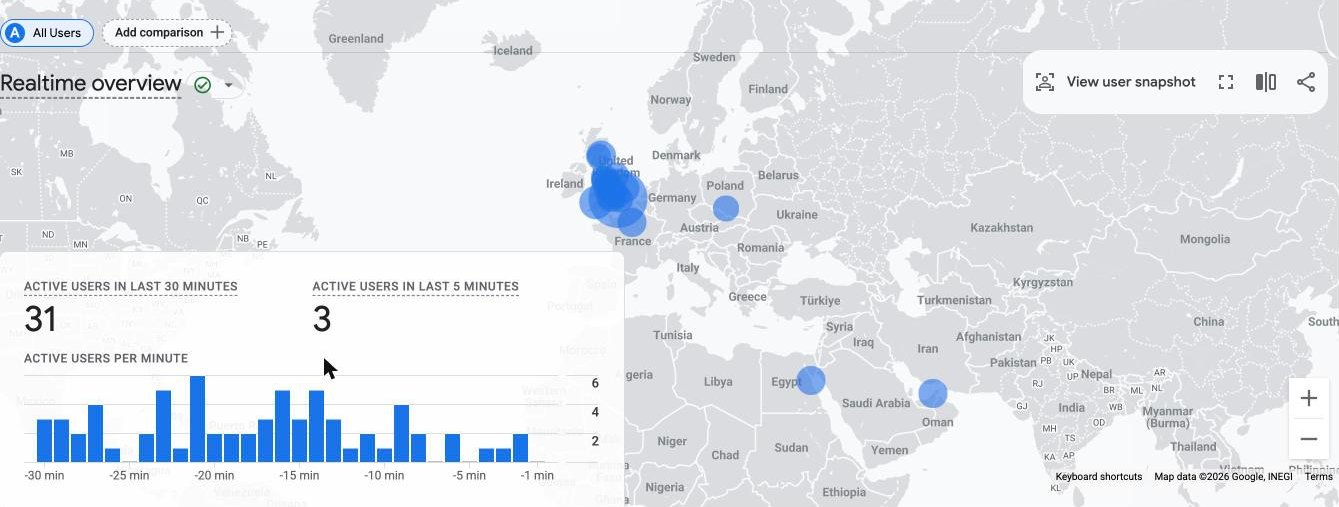
- Visit your website, then open Reports, then Realtime in GA4. You should see yourself as an active user within a minute.
- For more detail, use Tag Assistant (tagassistant.google.com) with your site, then open Admin, then DebugView, to watch each event arrive.
- Standard reports fill in within 24 to 48 hours.
Step 5: Extend data retention to 14 months
By default, GA4 keeps detailed event data for only two months, which limits the comparisons you can run in Explorations. This is one of the most commonly missed settings.
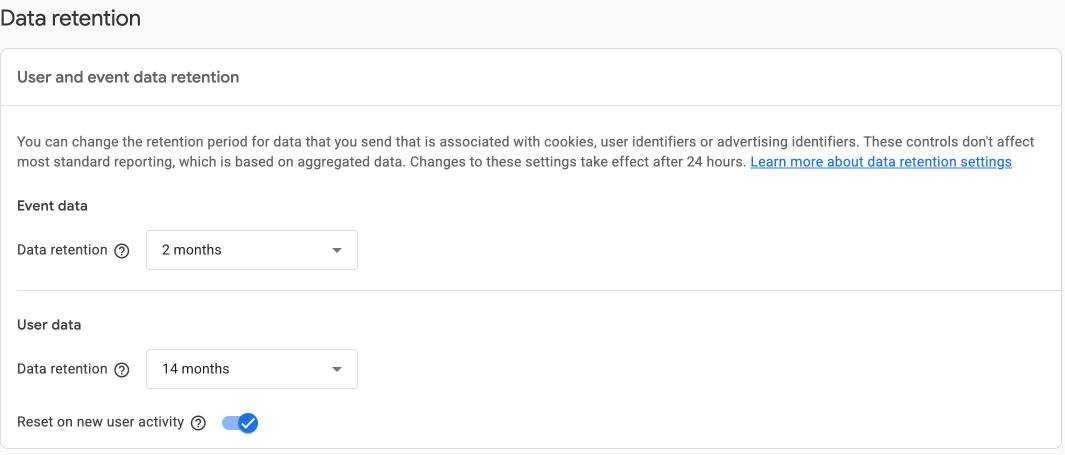
- Go to Admin, then Data collection and modification, then Data retention.
- Change "Event data retention" from 2 months to 14 months and save.
Step 6: Filter out your own team's visits
Visits from your office can inflate your figures and hide real changes in AI traffic.
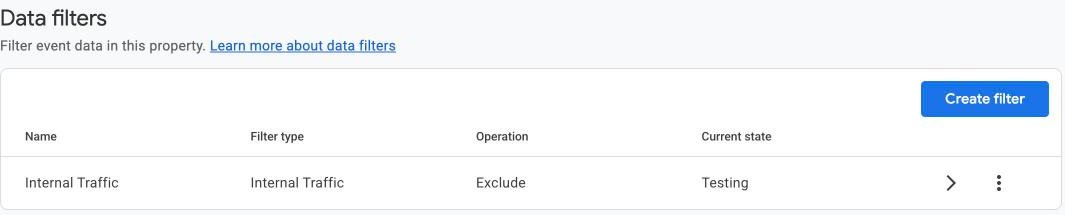
- Go to Admin, then Data streams, select your stream, then Configure tag settings, then Show more, then Define internal traffic.
- Create a rule with your office IP address (search "what is my IP" from the office network to find it).
- Go to Admin, then Data filters, open the "Internal Traffic" filter and change it from Testing to Active.
Step 7: Set up key events for enquiries
Key events (formerly called conversions) let you see whether AI visitors take action, which matters more than how many arrive.
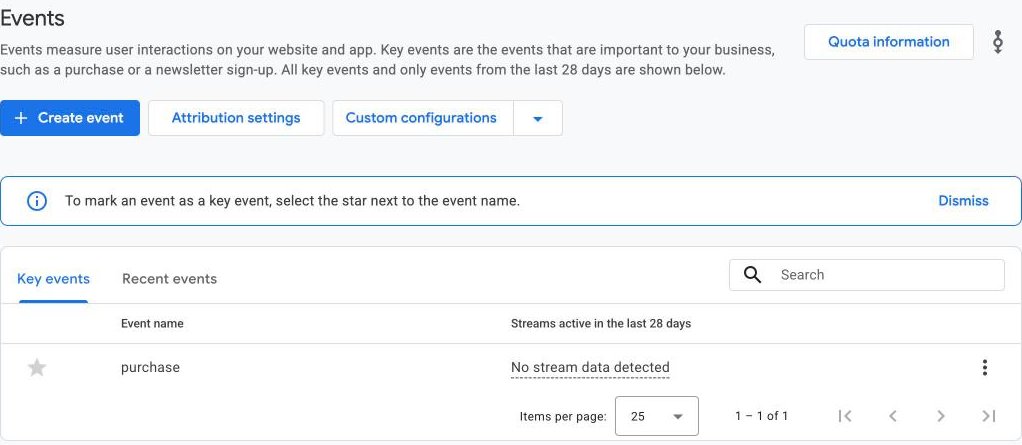
- Decide what counts as an enquiry: a form submission, a booking, a phone click or an email click.
- If your forms lead to a thank-you page, go to Admin, then Events, then Create event, and create an event such as "generate_lead" when page_location contains "/thank-you".
- Go to Admin, then Key events, and mark that event as a key event.
- Test it by submitting your own form and checking DebugView.
Step 8: Set up Consent Mode for UK and EU visitors
Under UK and EU privacy rules, you need consent before setting analytics cookies. Consent Mode tells GA4 whether each visitor has agreed, and lets Google model some of the activity of visitors who decline, so your figures are less understated.
- Choose a cookie banner (consent management platform) certified by Google.
- Turn on its Google Consent Mode integration, ideally the "advanced" setting.
- Check in Tag Assistant that consent signals are sent before the Google tag fires.
Without consent mode, your GA4 figures for UK and EU visitors can look much lower than reality, so keep this in mind when you compare channels.
Step 9: Link Google Search Console
Linking the two tools brings your search data into GA4, so you can see search queries and landing pages alongside visits and enquiries.
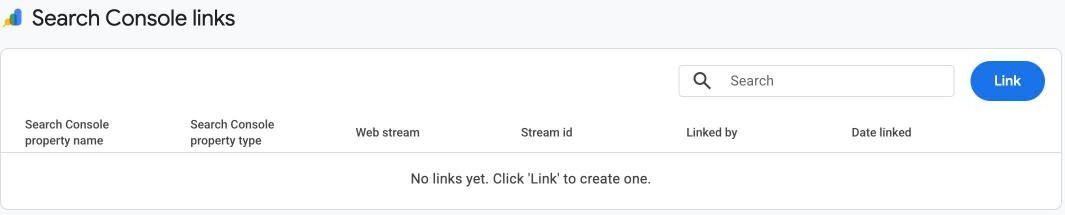
- Go to Admin, then Product links, then Search Console links, then Link.
- Choose your Search Console property and your web data stream, then submit.
- Go to Reports, then Library, find the "Search Console" collection and publish it so it appears in your menu.
How to set up Google Search Console to track AI performance
Search Console is Google's free tool for seeing how your site performs in Google Search, including AI Overviews and AI Mode, which Google counts within its normal search data.
- Sign in at search.google.com/search-console and select "Add property".
- Choose a Domain property, which covers every version of your site (www, non-www, http and https, and subdomains).
- Verify ownership by adding the TXT record Google gives you to your domain's DNS settings. If you can't edit DNS, use a URL-prefix property and verify with the HTML tag or your GA4 account.
- Go to Sitemaps and submit your sitemap address, usually yoursite.com/sitemap.xml.
- Link Search Console to GA4, as in Step 9 above.
- Go to Settings, then Users and permissions, and add team members with full or restricted access.
- Bookmark the filtered reports you will reuse for AI tracking (set out in the next section). Search Console keeps filters in the page address, so a bookmark saves the view.
How to track visits from AI assistants in GA4
1. Find AI referrals in the Traffic acquisition report
- Go to Reports, then Acquisition, then Traffic acquisition.
- Change the main dimension to "Session source / medium".
- Type "chatgpt" in the search box to see ChatGPT visits, then repeat for "claude", "perplexity", "gemini" and "copilot".
ChatGPT adds a tracking tag (utm_source=chatgpt.com) to many of its links, so its visits are usually labelled clearly.
2. Filter all AI sources at once with a regex
A regex (regular expression) is a short pattern that matches several sources at once. Add a filter on "Session source" that matches this regex:
chatgpt\.com|chat\.openai\.com|claude\.ai|perplexity|gemini\.google\.com|copilot\.microsoft\.com|deepseek|grok|meta\.ai|mistral
Update the pattern as new AI tools appear.
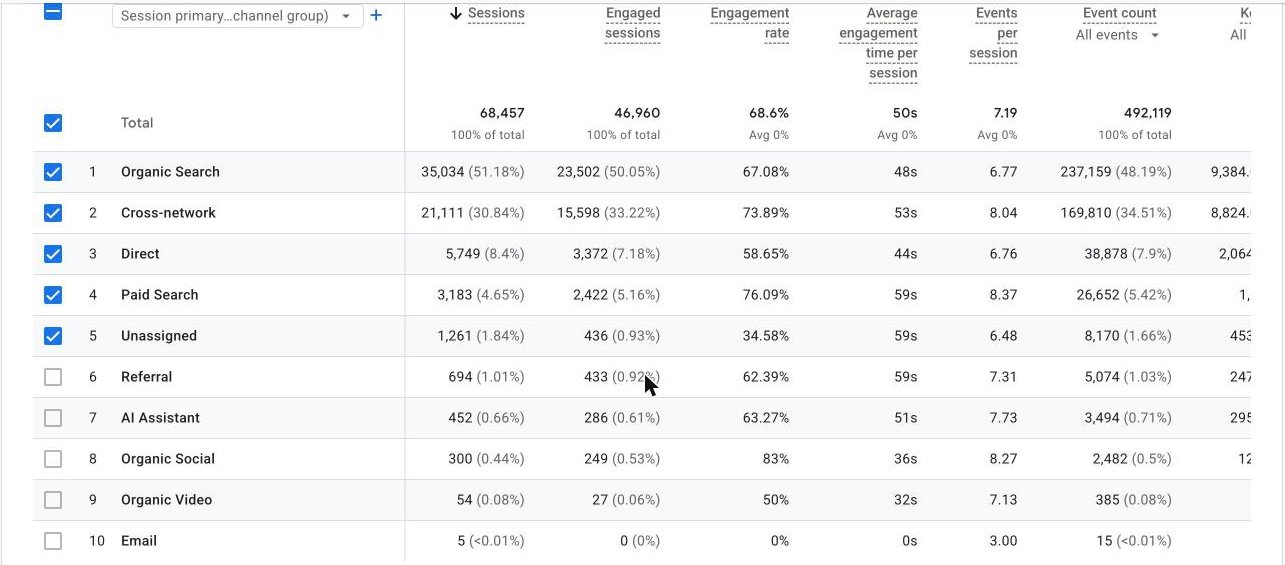
3. Create an "AI assistants" channel
By default, GA4 lumps AI visits into Referral, where they get lost. A custom channel group gives them their own line in every report.
- Go to Admin, then Data display, then Channel groups, then Create new channel group (or copy the default group).
- Add a new channel called "AI assistants" with the condition: Source matches regex, using the pattern above.
- Move "AI assistants" above "Referral" in the list. GA4 applies channels in order, so this step is essential.
- Save, then select your new channel group in the Traffic acquisition report.
4. See which pages AI visitors land on, and whether they enquire
- Go to Explore and create a Free form exploration.
- Add the dimensions "Session source / medium" and "Landing page + query string".
- Add the metrics Sessions, Engaged sessions, Engagement rate and Key events.
- Filter Session source with the AI regex.
This shows the pages AI tools send people to. These are usually the pages AI assistants cite most, and the ones worth keeping sharp.
5. Compare AI visitors with organic visitors
Compare engagement rate and key event rate for the "AI assistants" channel against "Organic search". If AI visitors enquire at a higher rate, as many businesses find, that is your case for investing in AEO even while the numbers are small.
Volume is small, but engagement seems surprisingly strong.
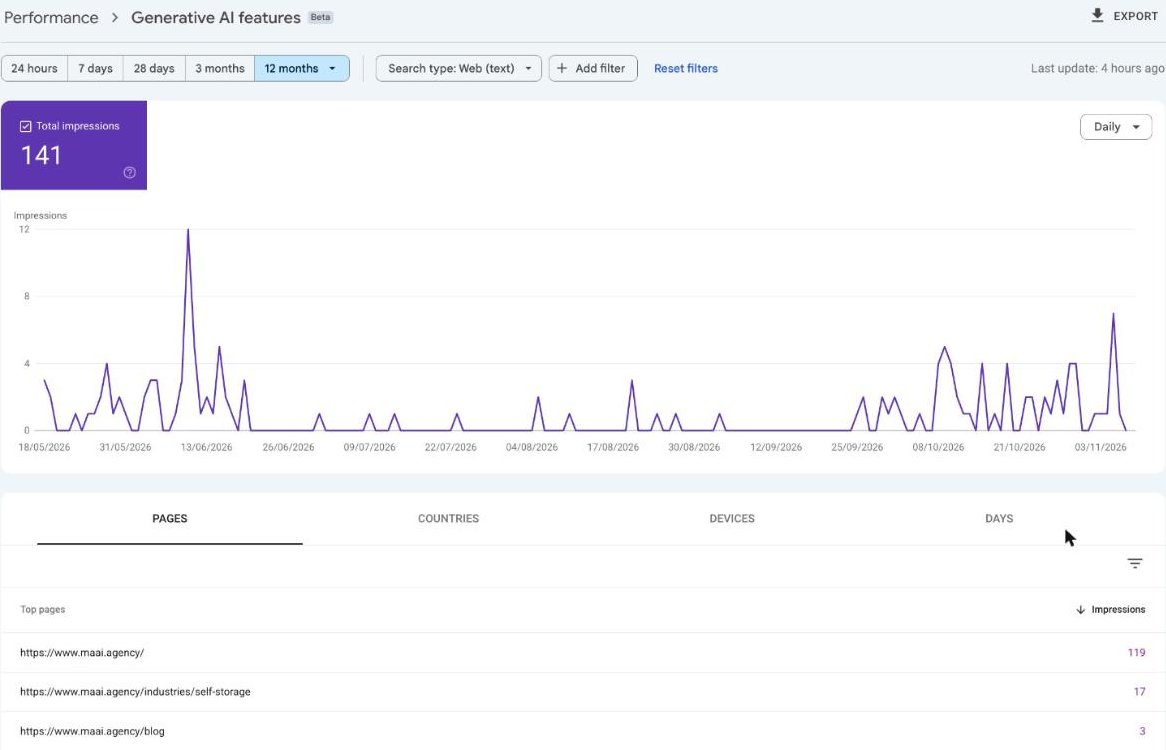
How to track Google AI Overviews and AI Mode in Search Console
Search Console has no AI Overview filter, so you track Google's AI features through patterns in your data.
1. Filter question-style searches
Almost all searches that trigger AI Overviews are informational, according to Ahrefs. Filtering for question-style searches isolates the ones most likely to show an AI Overview.
- Go to Performance, then Search results.
- Select "Add filter", then Query, then "Custom (regex)".
- Use a pattern such as: ^(what|how|why|when|which|who|is|are|can|does|do|should)\b|\b(vs|versus|difference|meaning|guide)\b
2. Find pages where CTR falls but position holds
- Select Date, then Compare, and compare the last three months with the same period last year.
- Turn on all four metrics: clicks, impressions, CTR and position.
- Open the Pages tab and look for pages where position and impressions are stable or rising, but CTR has dropped.
These pages are likely appearing under AI Overviews. Search the main queries yourself to confirm, and note whether your page is one of the cited sources.
3. Decide which searches are still worth winning
- Keep defending: comparison, cost, "best" and supplier searches, where buyers still click to check details.
- Accept the change: simple definition searches that the AI answer now covers in full. Aim to be cited there for visibility rather than clicks.
- Rework: pages losing clicks on valuable searches, by answering the question earlier and covering the follow-up questions.
4. Optional: capture AI Overview clicks with text fragments
Google sometimes adds a text fragment (#:~:text=) to links from AI Overviews, which scrolls the visitor to the quoted passage. GA4 cannot see this by default, but with a custom JavaScript variable in Google Tag Manager you can pass it to GA4 as a custom dimension. Analytics consultant Dana Di Tomaso has published a step-by-step method. Note that clicks from featured snippets and People Also Ask can use the same fragment, so treat the result as an estimate.
How to check your rankings, keywords and indexing in Search Console
How to check your Google ranking for a keyword
- Go to Performance, then Search results, and turn on "Average position".
- Open the Queries tab to see the searches you appear for, with clicks, impressions, CTR and position.
- Filter by a single query to check your position for that keyword over time.
Average position is an average across every time you appeared, so it can differ from what you see when you search yourself.
Why does Google Analytics say "keyword (not provided)"?
Google encrypts searches, so analytics tools cannot see which keyword a visitor typed. GA4 therefore shows organic visits without the search term. Search Console is where that data lives. Once the two are linked, open the Search Console reports in GA4 (Reports, then Search Console, then Queries) to see the searches that bring people to each page. Search Console also hides some rare searches to protect privacy, so totals may not match exactly.
How to check indexing and submit a page to Google
- Paste a page address into the URL Inspection tool at the top of Search Console.
- Check whether the page is indexed, and whether Google can crawl it.
- If it is new or updated, select "Request indexing".
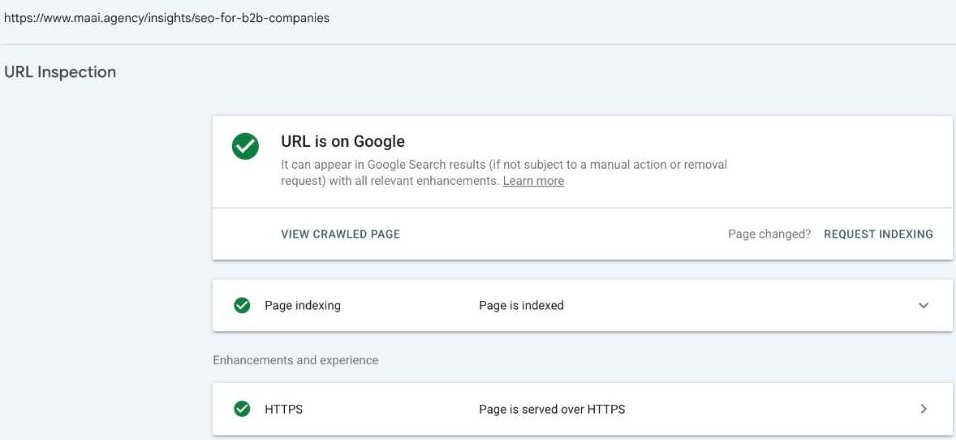
- Open Indexing, then Pages, to see which pages are not indexed and why.
A page that is not indexed cannot appear in Google's results or its AI answers, so check new pages within a few days of publishing.
How to build a free monthly AI traffic report
Looker Studio, Google's free reporting tool, connects to both GA4 and Search Console, so one dashboard can track your AI performance each month.
- Go to lookerstudio.google.com and create a blank report.
- Add GA4 and Search Console as data sources.
- Build a page with five metrics:
- visits from the "AI assistants" channel
- key events from AI visitors
- impressions and CTR for question-style searches (using the regex filter)
- branded searches, a sign of invisible AI influence
- a simple table of your monthly manual checks of key prompts in ChatGPT, Claude and AI Overviews
- Set the date range to compare each month with the previous month and the same month last year.
What should you do with your AI traffic data?
Tracking only pays off when it changes what you do. Each month, use your report to act in four ways.
- Strengthen the pages AI already sends visitors to: keep their facts current, answer questions early and make the next step clear.
- Rework pages losing CTR on valuable searches: tighten the opening answer and cover the follow-up questions.
- Defend comparison and cost searches, where buyers still click.
- Grow branded search through PR and mentions, since it reflects AI influence you cannot track directly.
For platform-specific improvements, see our guides on how to rank in ChatGPT, how to rank in Claude and how to rank in AI Overviews and AI Mode.
Paid tools to consider as your business scales
Free tools show what reaches your website. They cannot show AI mentions that never produce a click, which AI platforms cite you, how AI Mode differs from AI Overviews, or how your visibility compares with competitors. Paid AI visibility tools fill those gaps, and become worth considering when you track many topics or markets, report to a board or clients, or compete hard for AI visibility. Once you can measure it, our guide on whether SEO can generate leads shows how to turn that traffic into enquiries.
Tools worth considering include:
- Ahrefs Brand Radar: brand mentions and citations across AI Overviews, AI Mode, ChatGPT, Perplexity and more.
- Semrush AI Toolkit: AI visibility, mentions and sentiment alongside Semrush's SEO data.
- Peec AI: prompt-level tracking of brand visibility across AI assistants.
- Profound: enterprise-level AI visibility and citation tracking.
- Otterly.AI: simpler monitoring of brand mentions and citations in AI answers.
Our upcoming guide to paid AI visibility tools compares them in detail. For the bigger picture, read our guide to answer engine optimisation.
FAQ
Is Google Analytics free?
Yes. GA4 is free for almost all businesses, with no fee or payment method needed. Google also sells Google Analytics 360, a paid enterprise version with higher limits and service agreements, which only very large websites usually need.
How do you set up Google Search Console for a small business?
Sign in with your business Google account, add your website as a Domain property and verify it through your domain's DNS settings. If your website platform makes DNS hard to reach, add a URL-prefix property and verify with your GA4 account instead. Then submit your sitemap and link Search Console to GA4. Most small businesses can do this in under 30 minutes without a developer.
Why do ChatGPT visits show as Direct in GA4?
Visits from AI mobile and desktop apps, or from links people copy and paste, often arrive without a referrer. GA4 then records them as Direct. A rise in direct visits to deep pages, such as specific service pages, can be a sign of AI traffic.
How long before AI traffic shows in GA4?
Visits appear in the Realtime report within seconds, and in standard reports within 24 to 48 hours. A new custom channel group applies to your data straight away in reports.
What is the difference between Semrush and Google Analytics?
They do different jobs. Google Analytics measures real visitors to your own website: where they came from and what they did. Semrush estimates search data across the whole market, such as keyword volumes, competitors' rankings and AI visibility. Many businesses use both.
Are there free alternatives to Google Analytics?
Yes. Options include Matomo (free to self-host), Microsoft Clarity (free session recordings and heatmaps, often used alongside GA4) and Ahrefs Web Analytics (free tier). Privacy-focused tools such as Plausible and Fathom are paid. Whichever you use, set up the same AI source filter to keep AI visits separate.
Does Google Search Console show AI Overview data?
Yes, but blended in. Google includes impressions and clicks from AI Overviews and AI Mode in Search Console's normal performance data, without a separate filter. Use the question-search filter and CTR comparison above to spot the effect. Want help setting up AI tracking for your business? Book a call with Team MAAI.